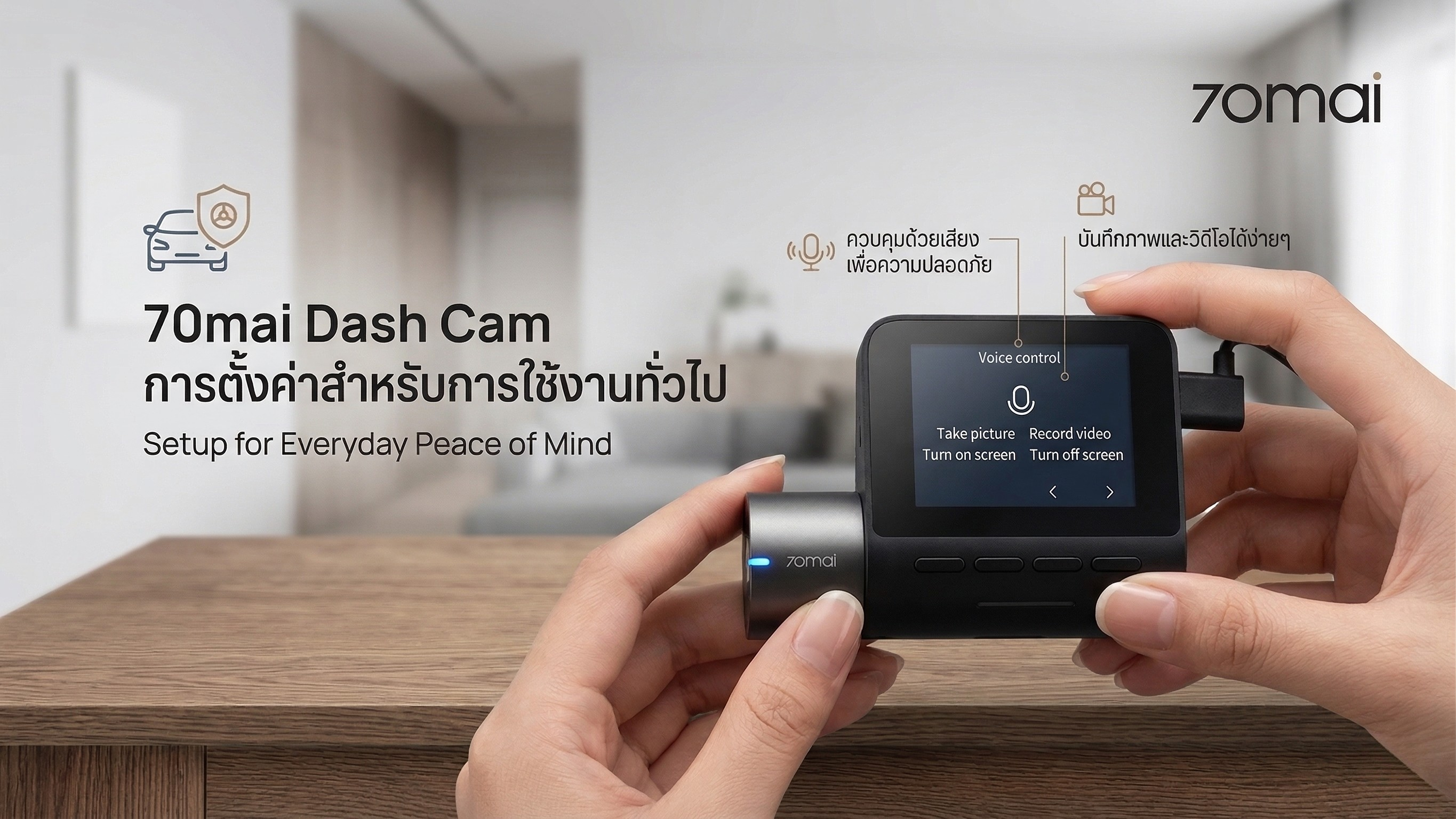

Setting up your 70mai Dash Cam for Beginners: For Clear Footage and Proper Use
70mai Dash Cam Setup Guide for Beginners: Achieving Sharp Images and Optimal Usage
Setting up your 70mai Dash Cam is a crucial step to ensure the camera records footage optimally for real-world use, both in terms of video clarity and continuous data recording. The device is designed for easy use and supports essential basic functions for general users.
However, installation alone may not be enough to achieve appropriately clear video footage. Correctly configuring the device from the start helps ensure high-quality recorded files that are clear and suitable for practical use.
This article explains how to set up your 70mai Dash Cam for beginners, focusing on easy-to-understand steps, along with tips for adjusting settings to enhance video clarity and ensure the device operates efficiently.
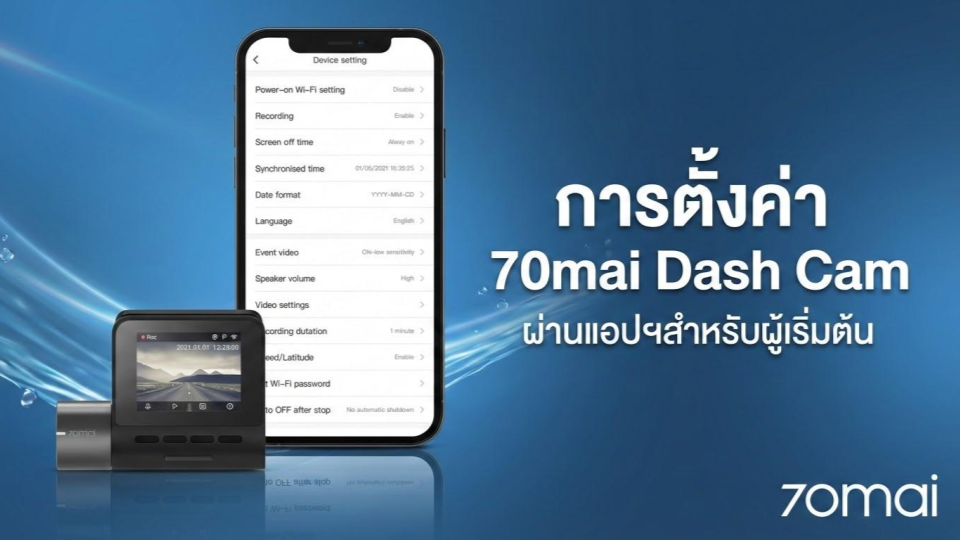
Setting up your 70mai Dash Cam: App Connection and Security Settings
Setting up 70mai Dash Cam via App for Beginners
Setting up your 70mai Dash Cam begins with connecting the device to your smartphone via the application. This allows convenient access to settings menus and management of various functions.
Steps to connect the 70mai app
- Download the "70mai" application from the App Store or Google Play.
- Turn on the camera's Wi-Fi signal in Hotspot mode.
- Select the Wi-Fi network named 70mai_xxxx.
- Enter the default password as specified in the device's manual (typically 12345678, depending on the model).
70mai Dash Cam Wi-Fi Security Settings
After successfully connecting the device, it is recommended to adjust the security settings to help reduce the risk of unauthorized access.
Recommended Settings
- Change the Wi-Fi password to one that is difficult to guess.
- Set the Hotspot to enable only when necessary.
Reasons to Configure Security Settings
Adjusting these settings helps reduce the chance of others accessing video data without authorization and enhances the privacy of your device usage.
70mai Dash Cam Settings: Video Resolution for Sharp Images
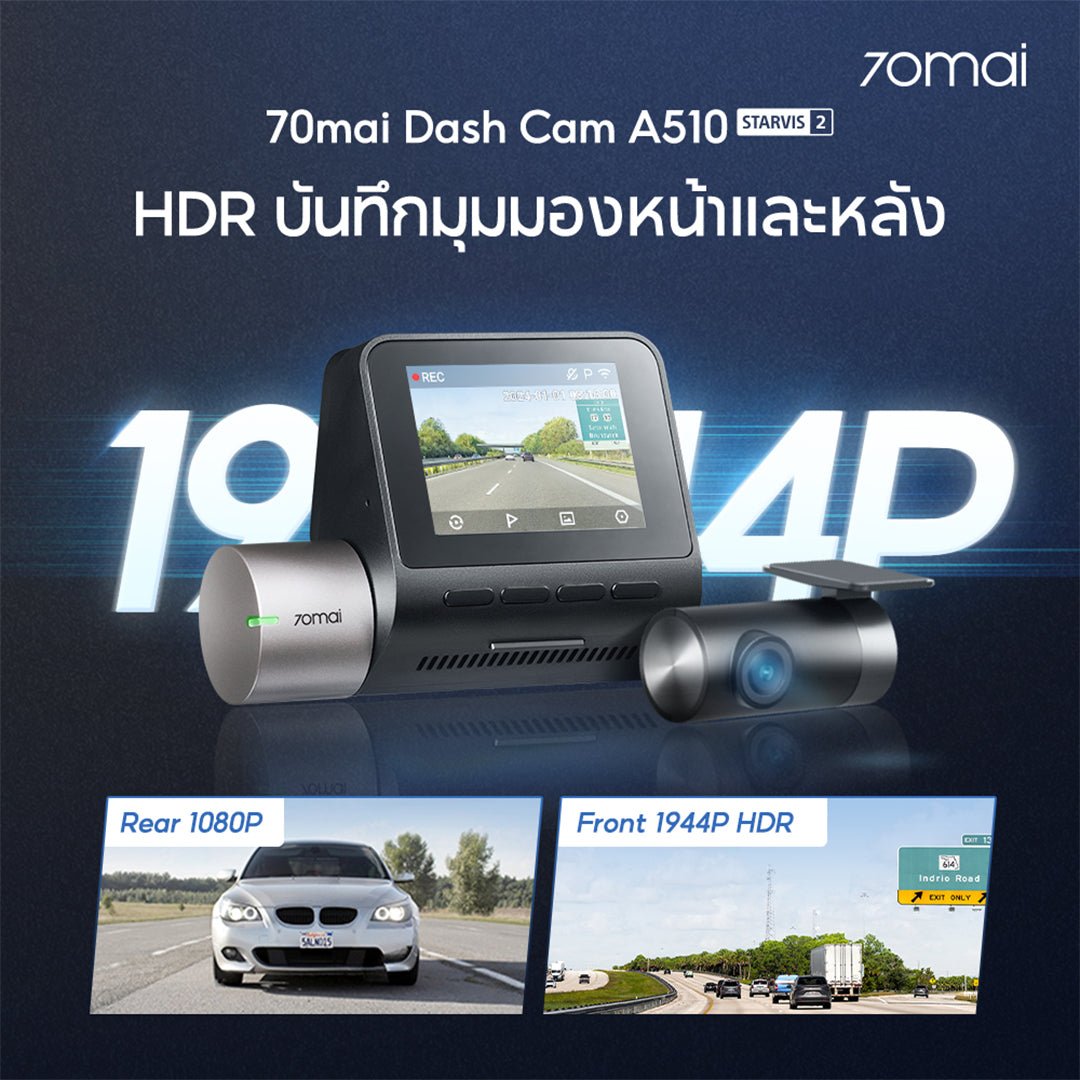
For general use, setting the resolution to 1080p with WDR enabled can provide balanced images in various lighting conditions. However, results may vary depending on the device model and usage environment.
How important is video resolution in 70mai Dash Cams?
Video resolution is one of the factors affecting the clarity of dash cam footage. Appropriate settings help make details in the video clearer, especially in situations where information needs to be extracted from recorded footage.
Comparing 4K and 1080p resolution in dash cams
4K (3840×2160)
- Provides high-level image detail
- Suitable for use requiring sharp image clarity in various lighting conditions
- Consumes a significant amount of storage space
1080p (Full HD)
- Provides standard image quality
- Uses less storage space
- Suitable for general daily use
Guidelines for choosing video resolution for beginners
When choosing resolution, consider the device's capabilities and available storage space. You can set the resolution to the highest supported by the camera if sufficient memory is available.
Choosing a memory card suitable for the resolution
- It is recommended to use 128GB or 256GB high-endurance cards that support continuous recording.
- Smaller capacities, such as 32GB or 64GB, may fill up quickly, depending on the resolution settings and usage duration.
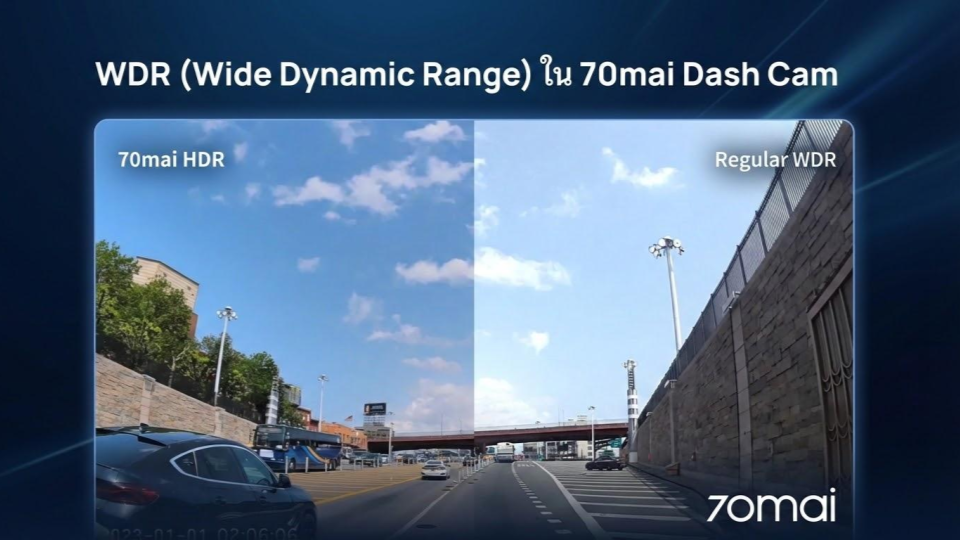
70mai Dash Cam Settings: What is WDR and should it be enabled?
WDR (Wide Dynamic Range) is a technology that helps balance light in video images, allowing for better detail in varying lighting conditions, such as areas with both bright and dark shadows within the same frame.
Issues WDR improves in real-world use:
- High-beam headlights
- Road conditions with low light or shadows
- Backlight, such as driving when the sun is in front of the vehicle
How to set up WDR in a dash cam:
WDR can be enabled to help balance light in video recording, with results varying depending on the environment and device model.
Benefits of enabling WDR:
- Helps make image details clearer in areas with different lighting.
- Reduces the impact of glare in some situations.
- Helps create a more balanced image in low-light conditions.
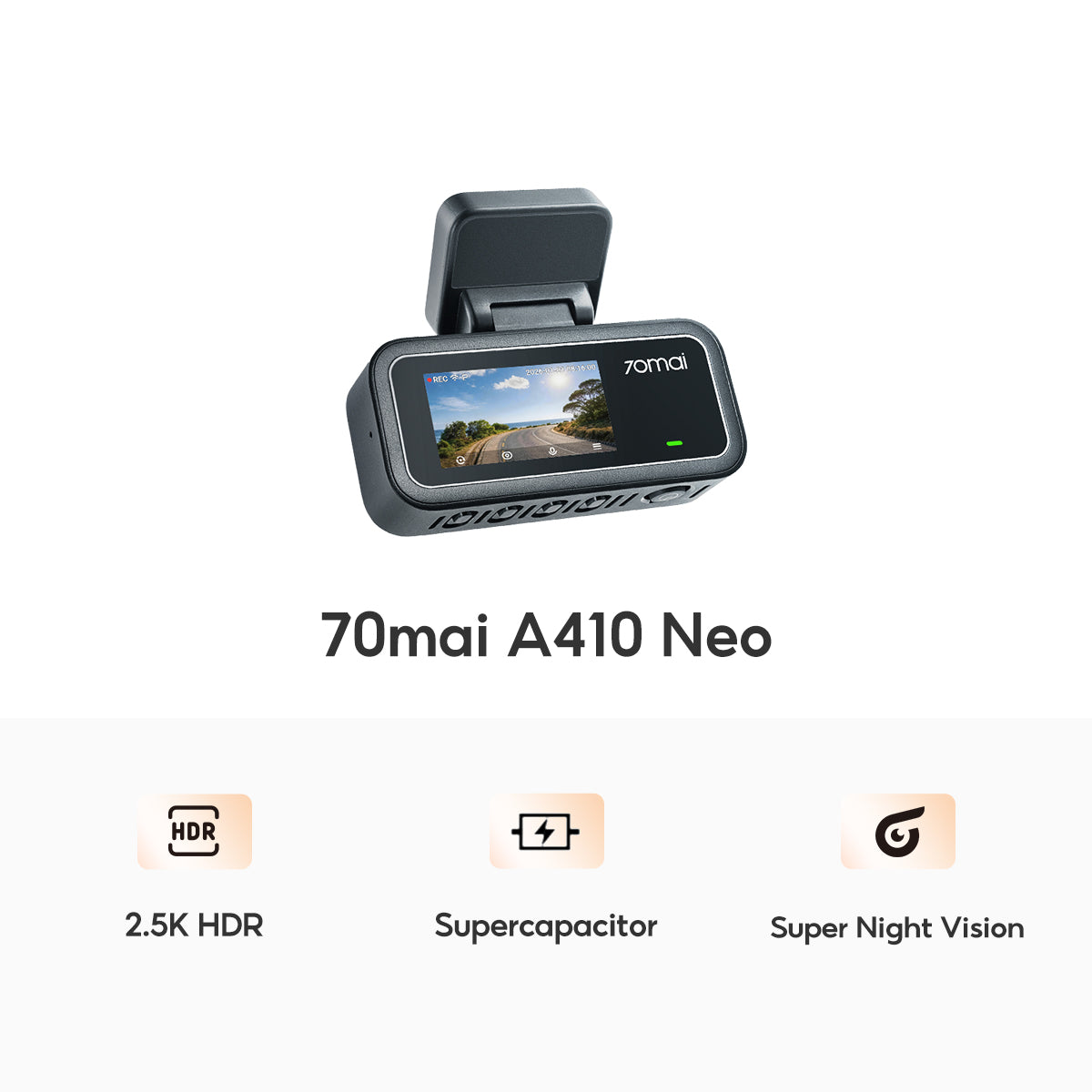
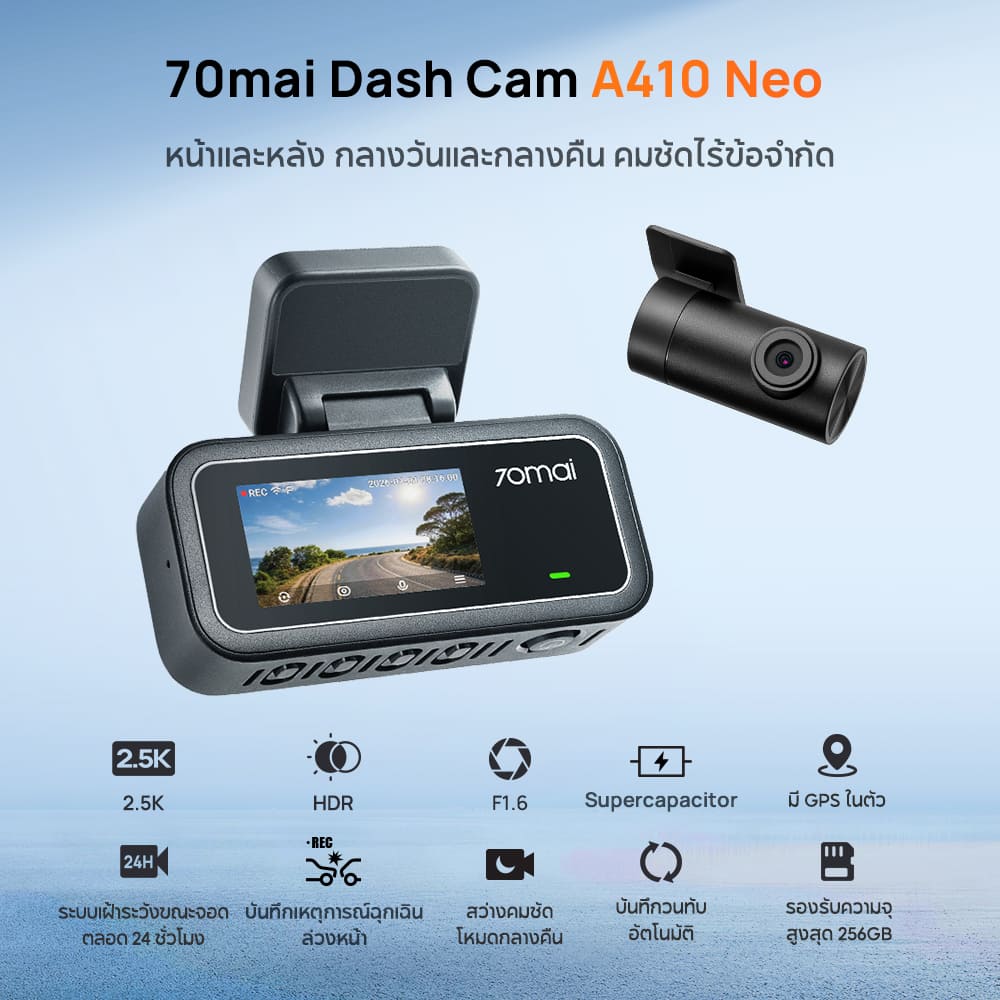
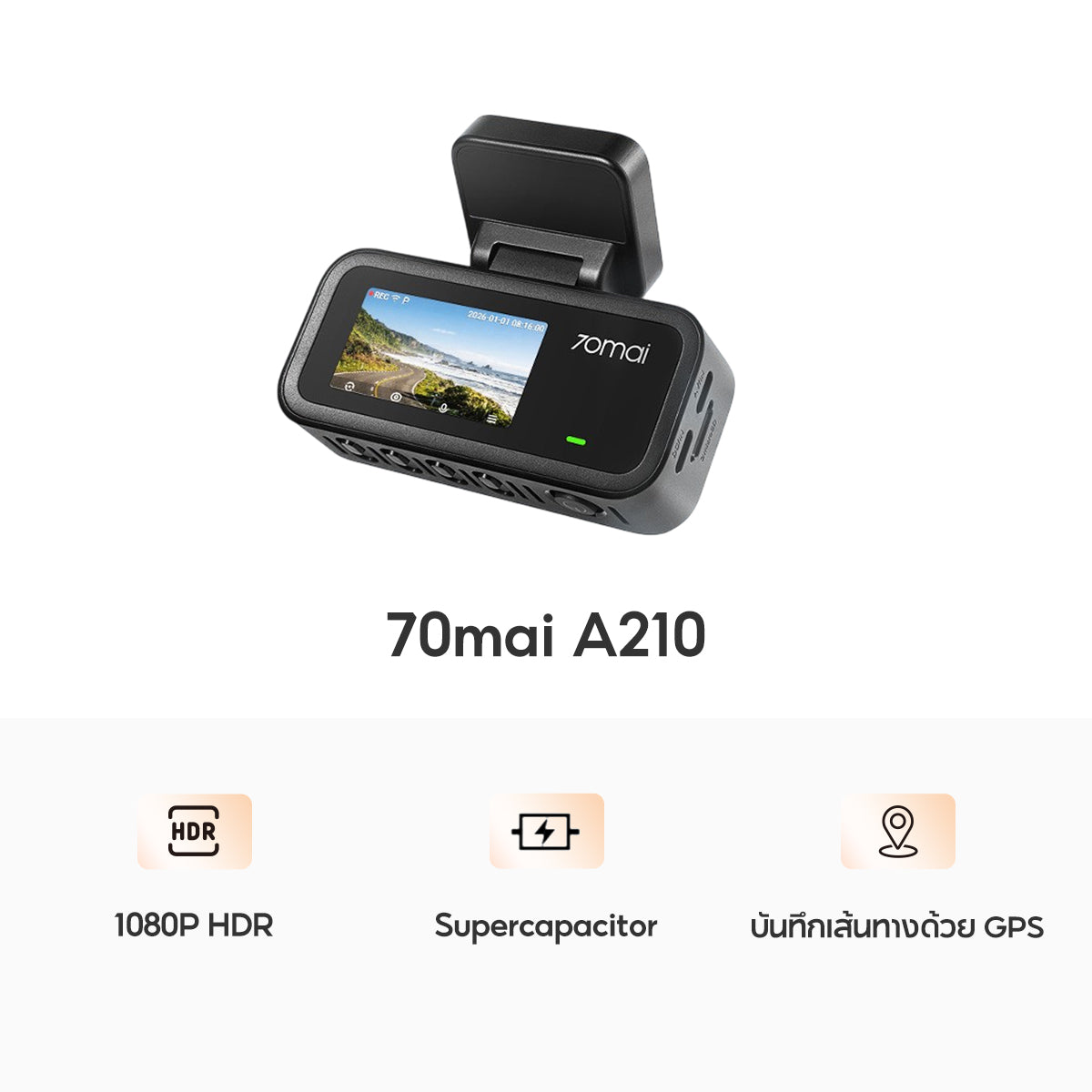
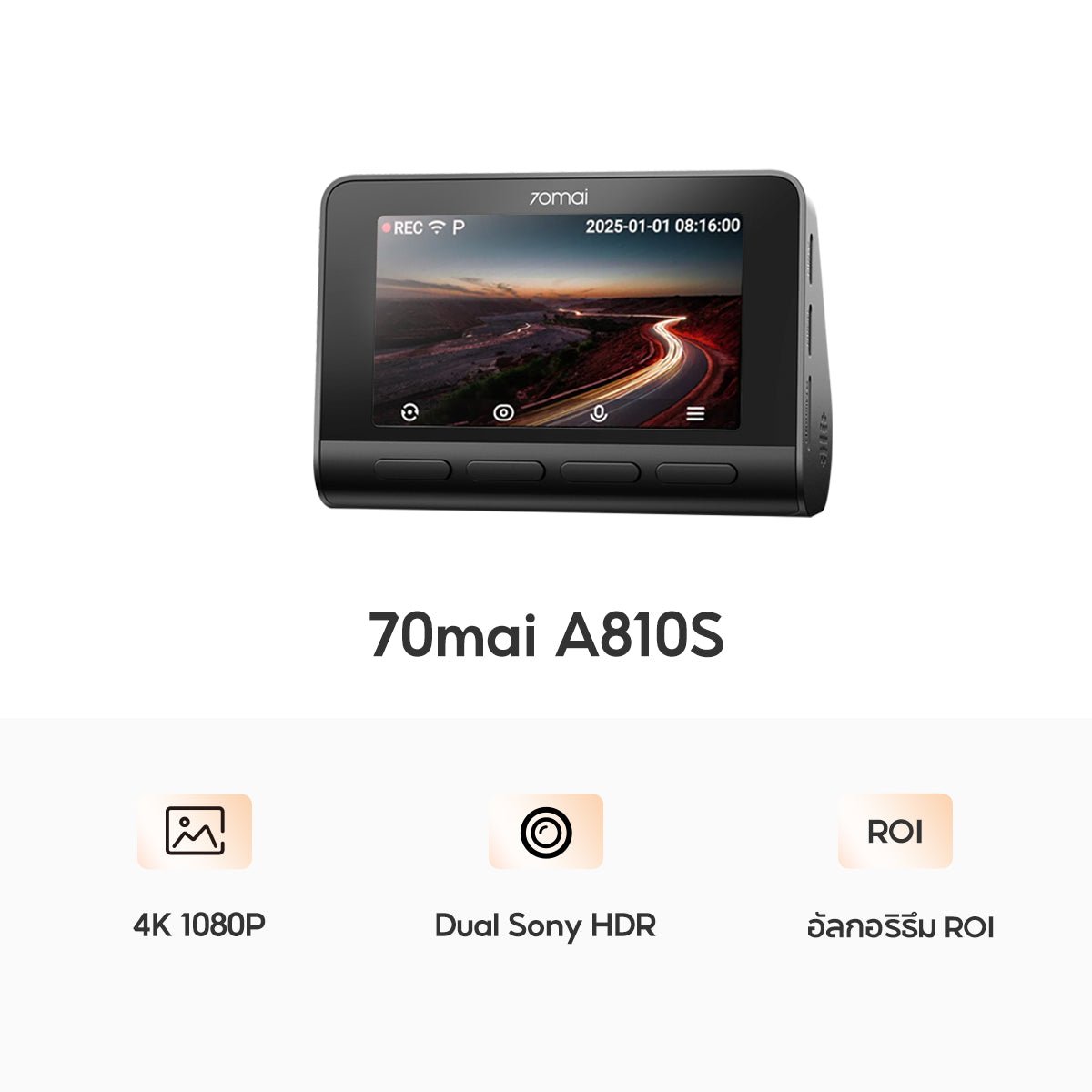
Recommended Products

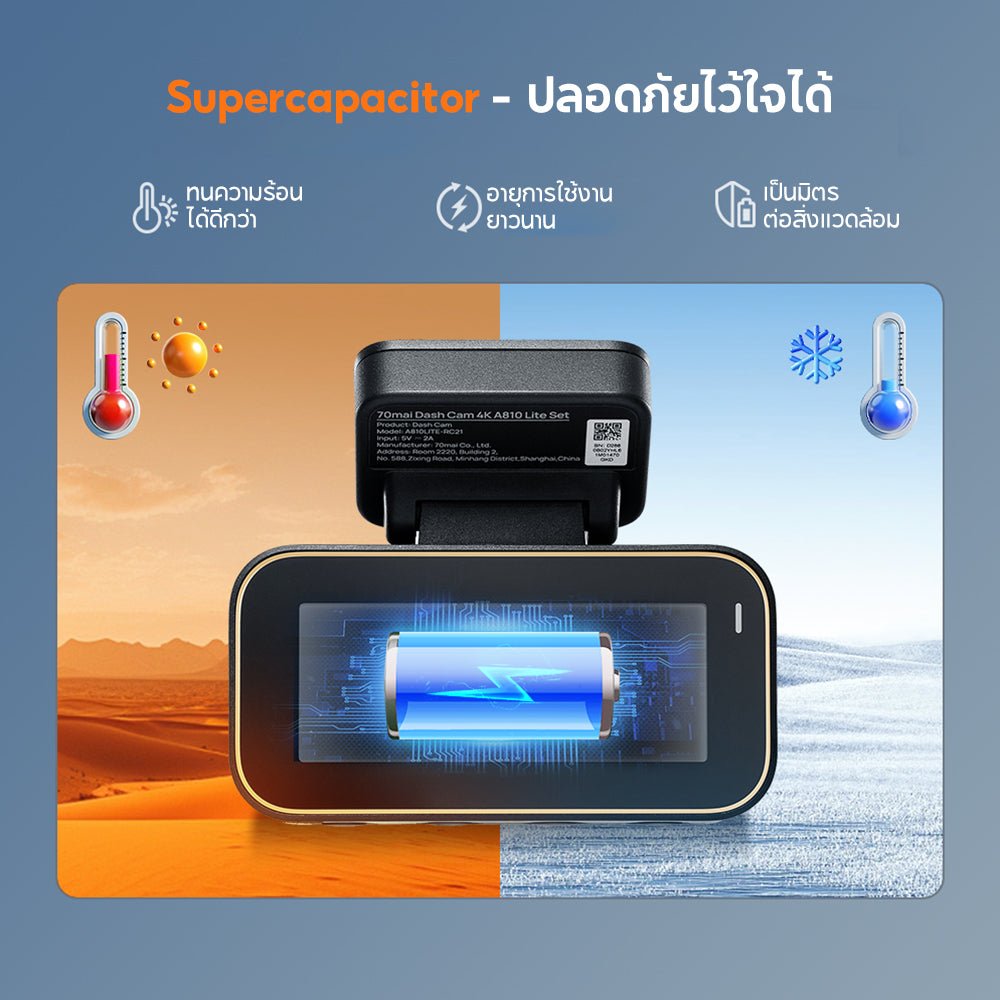




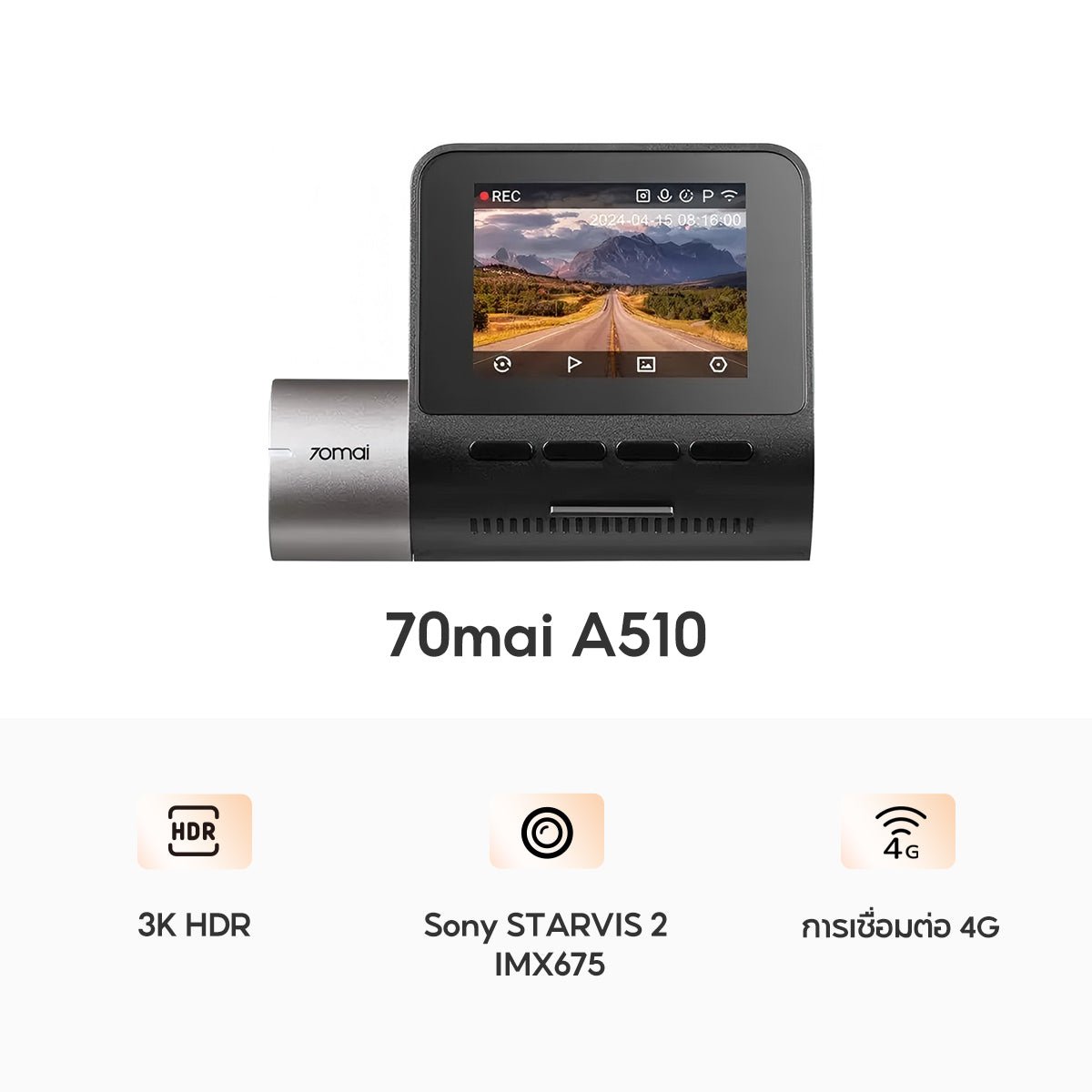
70mai Dash Cam Settings: What is Loop Recording and how do you set it up?
Loop Recording is a continuous video recording function where the system records in short files and automatically deletes older files when storage is full, allowing new data to be recorded continuously.
General Setup Guidelines for Loop Recording
- Access Settings: Turn on the dash cam and go to the main menu.
- Find Loop Recording Function: Look for a menu labeled "Loop Recording," "บันทึกวนซ้ำ," "Cyclic Record," or "Video Time Length."
- Select Time Interval: It is recommended to choose 1 minute (3min) as it offers the best balance between file size and ease of finding evidence (options usually include 1, 2, 3, 5, 10 minutes).
- Enable Function: Make sure the function is set to On or Active.
- Confirm Settings: Press OK to save the settings.
Benefits of Short File Settings
- Makes it easier to find video files.
- Reduces file transfer time in some cases.
- Facilitates file management during important events.
70mai Dash Cam Settings: What is G-Sensor and how should it be set up?
The G-Sensor is a system that detects vibrations or impacts on a vehicle, such as sudden braking or abnormal movements. When the system detects an event at a preset level, the camera will record and store the video file in a specific folder to prevent it from being overwritten by the loop recording system.
Examples of events that the G-Sensor can detect:
- Collision or impact
- Rapid braking
- Driving over uneven road surfaces
Potential issues from G-Sensor settings:
- High sensitivity may cause the system to record files during ordinary events, such as driving over speed bumps.
- Low sensitivity may not record some events with minor impacts.
Guidelines for G-Sensor settings for general use:
You can start by setting the level to Low or Medium to suit different road conditions. You can then increase or decrease the sensitivity according to your driving style and road conditions.
- Bumpy roads: Use the Low setting
- Smooth roads: Use the Medium setting
Memory Card Care in 70mai Dash Cam
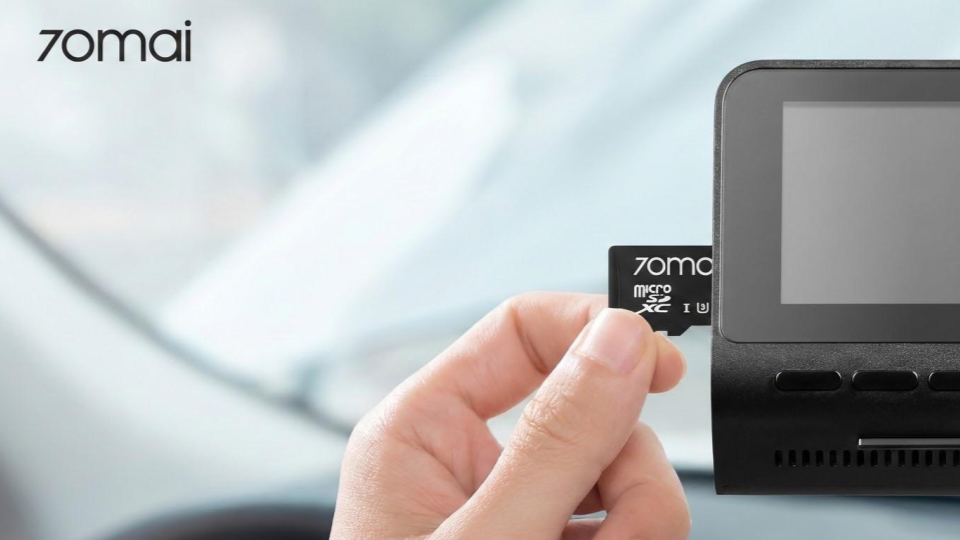
A memory card is a device used to continuously record video data in a dash camera, with data being written and deleted regularly. Proper maintenance helps to ensure the system's stable operation.
Reasons to format your memory card
- Reduces the chance of corrupted files.
- Helps prepare storage space for use.
- Allows loop recording to function more continuously.
Memory card formatting guidelines
You can format your memory card periodically, for example, once a month, through the device's application. The frequency of formatting may vary depending on usage.
Summary of 70mai Dash Cam settings for general use
Properly configuring your 70mai Dash Cam helps ensure continuous video recording and suitability for various situations. Users can adjust settings according to their driving style and environment, making the dash cam use align with daily needs.
Key configuration guidelines include:
- Select video resolution supported by the device and appropriate for storage space.
- Enable WDR to help balance light in certain environments.
- Set Loop Recording to short intervals, such as 1-3 minutes, for easy file management.
- Adjust G-Sensor sensitivity to match road conditions and driving style.
- Format the memory card periodically as appropriate.
Results of Optimal Configuration
- Enhances continuous video recording.
- Increases clarity of image details in certain situations.
- Helps align dash cam usage with actual usage patterns.